Layers
Agentic Signal can keep several workflows open at once, each on its own layer. Only one layer is shown at a time, but every layer keeps running in the background: a timer keeps firing, a Slack Input keeps listening, and a Workflow Input keeps answering calls while you work on another layer.
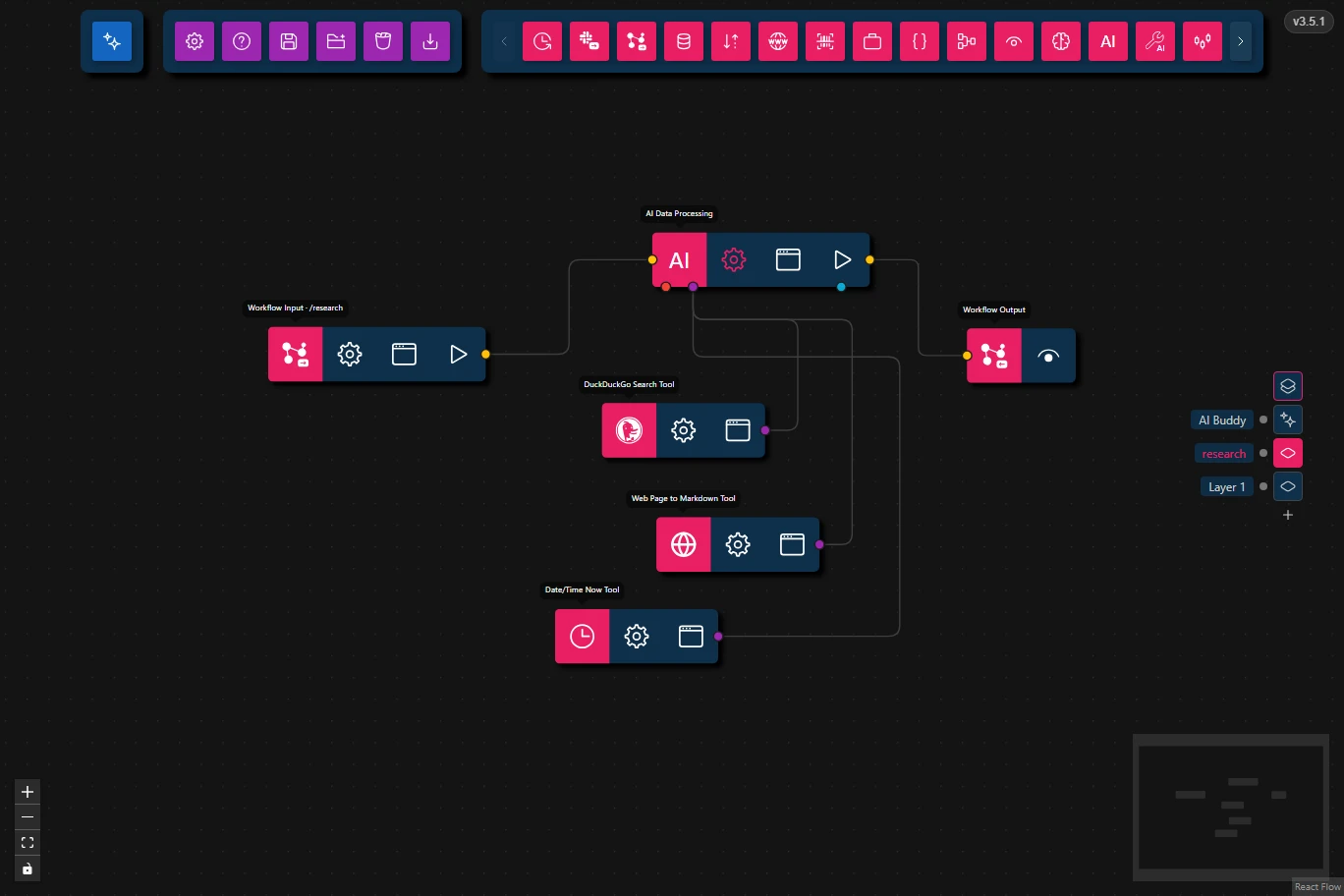
The Layer Switcher
The layer button on the right edge of the canvas opens the list of layers:
- Click a layer to show it.
- Add layer (the plus button) opens an empty layer named
Layer N. - Double-click a layer's name to rename it. Two layers may share a name.
- Delete (the minus button) removes a layer and its workflow. When the layer holds a workflow, it asks first.
The list stays open or closed as you left it, after a restart too. Clear App Data in Settings closes it again.
A coloured dot next to a layer shows what it's doing for a command: blue while it runs one, red when the last one failed.
Loading a Workflow
Load Workflow in the actions dock opens a workflow file. On an empty layer, it simply loads. When the layer already holds a workflow, you choose:
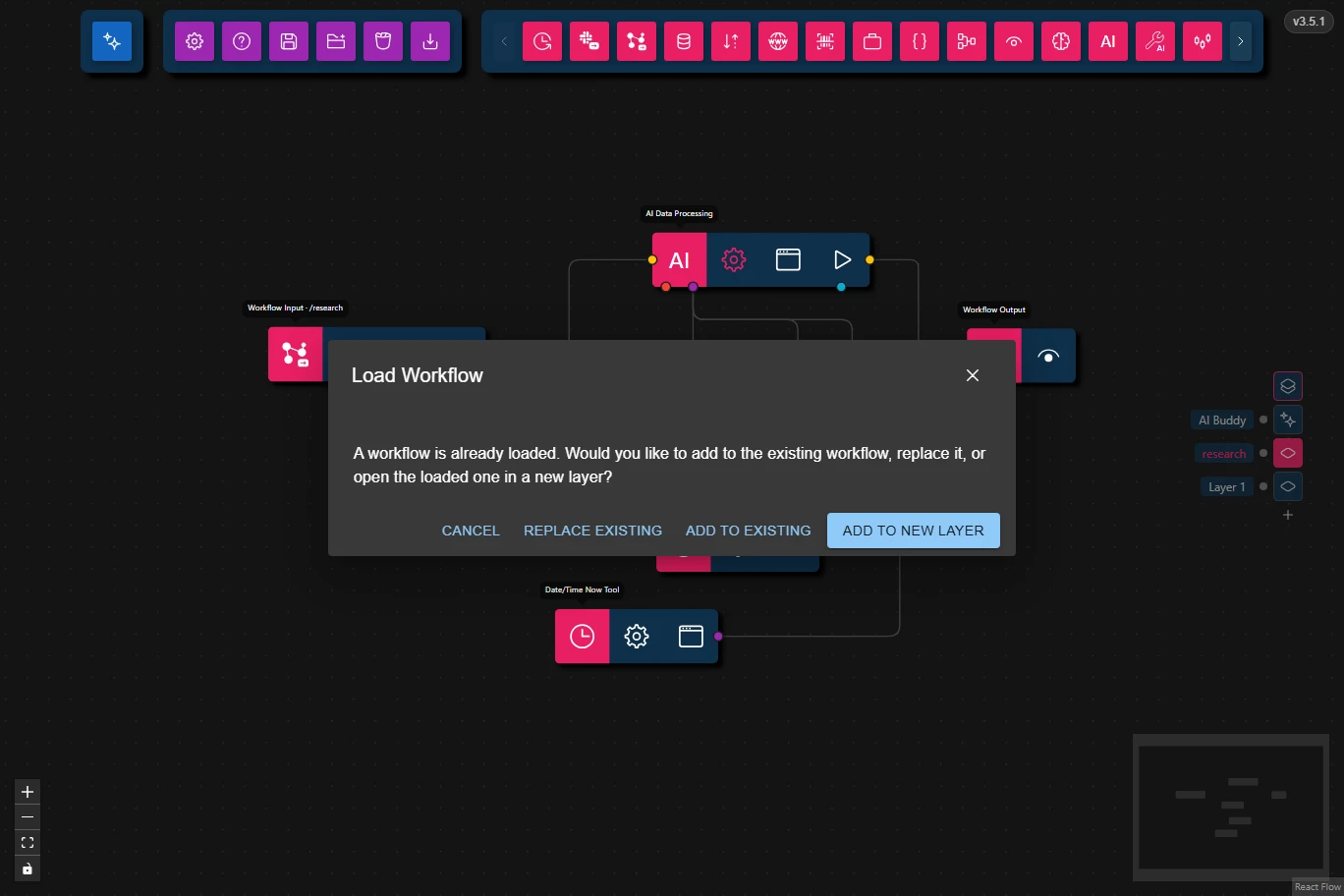
| Button | What happens |
|---|---|
| Cancel | Nothing is loaded. |
| Replace Existing | The file replaces the layer's workflow. |
| Add to Existing | The file's nodes are added next to the ones already there. |
| Add to New Layer | The file opens on a new layer and the current one is left alone. |
A layer still named Layer N takes the file's name when you load into it while it's empty, and when you choose Replace Existing. Add to New Layer always names the new layer after the file. A layer you have renamed keeps its name.
The Load Workflow button under a workflow the AI Buddy has prepared works the same way, on whichever layer is shown when you press it.
Saving a Workflow
- Save Workflow saves the shown layer's workflow. The web app downloads it as a file. The Windows app saves it to your workflows folder, asking before it replaces a file of the same name.
- Save to Workflows Folder (web app only) saves it to the workflows folder instead of downloading it.
A workflow in the workflows folder whose Workflow Input names a command can be called from the AI Buddy chat.
Saved files never contain your tokens and API keys. See Credentials.
The AI Buddy Layer
The first layer, AI Buddy, is where the AI Buddy runs the commands you call from its chat. It's always there and can't be renamed or deleted.
It's read-only:
- You can't add nodes to it, clear it, or load a workflow into it. A Load Workflow while it's shown offers to open the workflow on a new layer instead.
- You can open its nodes' settings and logs to see how a command ran, and Save Workflow works. Saving is how you make a command's workflow your own: save the built-in
researchworkflow, change it on your own layer, and save it back to the workflows folder to replace/research.