AI Data Processing Node
The AI Data Processing Node is the main AI component in your workflow. It uses local language models via Ollama to analyze, transform, and generate text-based content for a wide range of tasks.
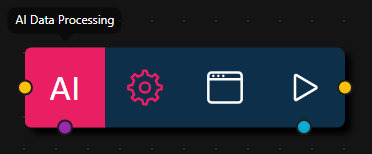
Configuration
- Model
- Max Feedback Loops
- Max Tool Retries
- AI Orchestration Mode
- Thinking & Temperature
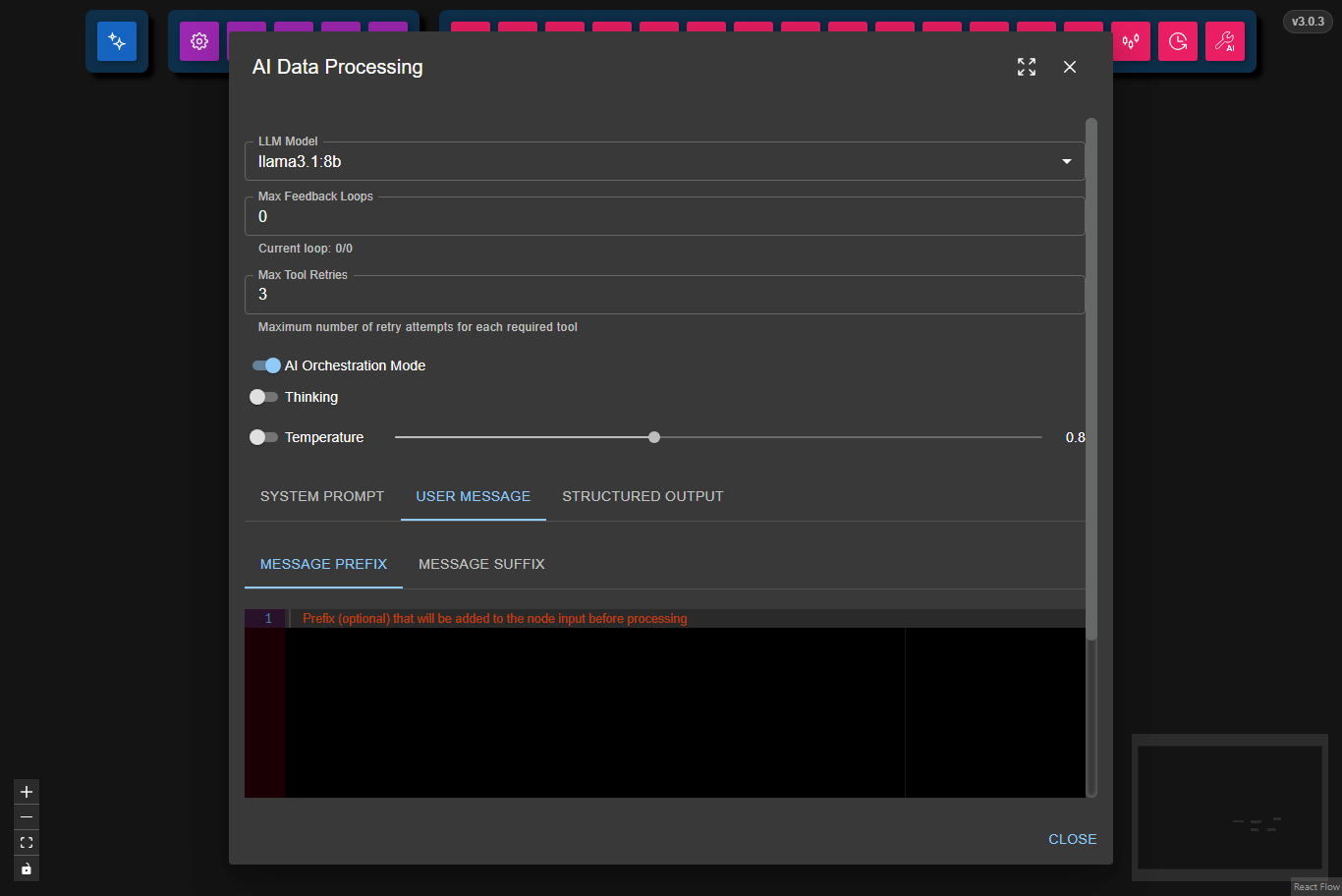
- System Prompt
- User Message
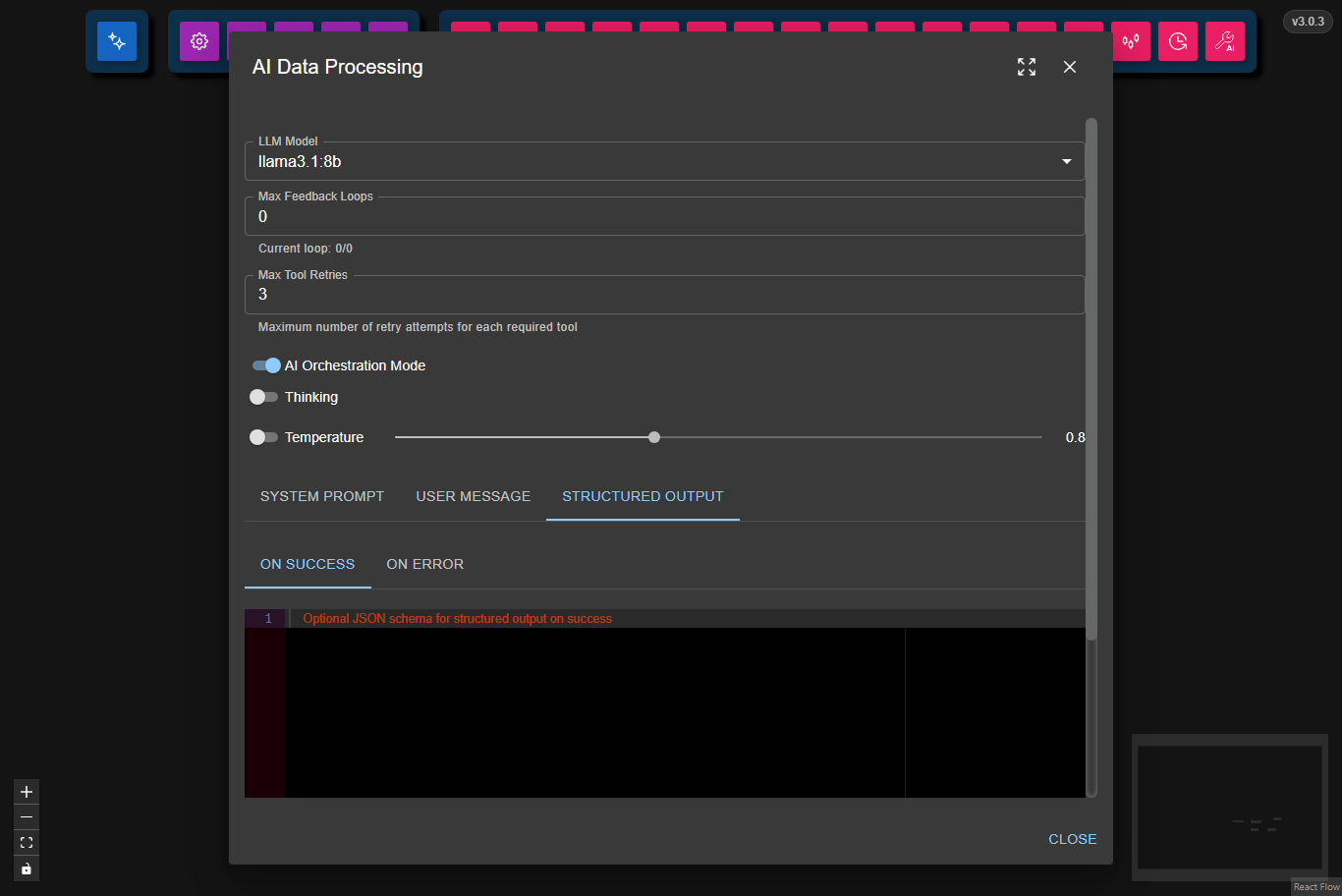
- Structured Output
- Configuration Schema
Choose an Ollama model to use for processing (e.g., llama3.1:8b).
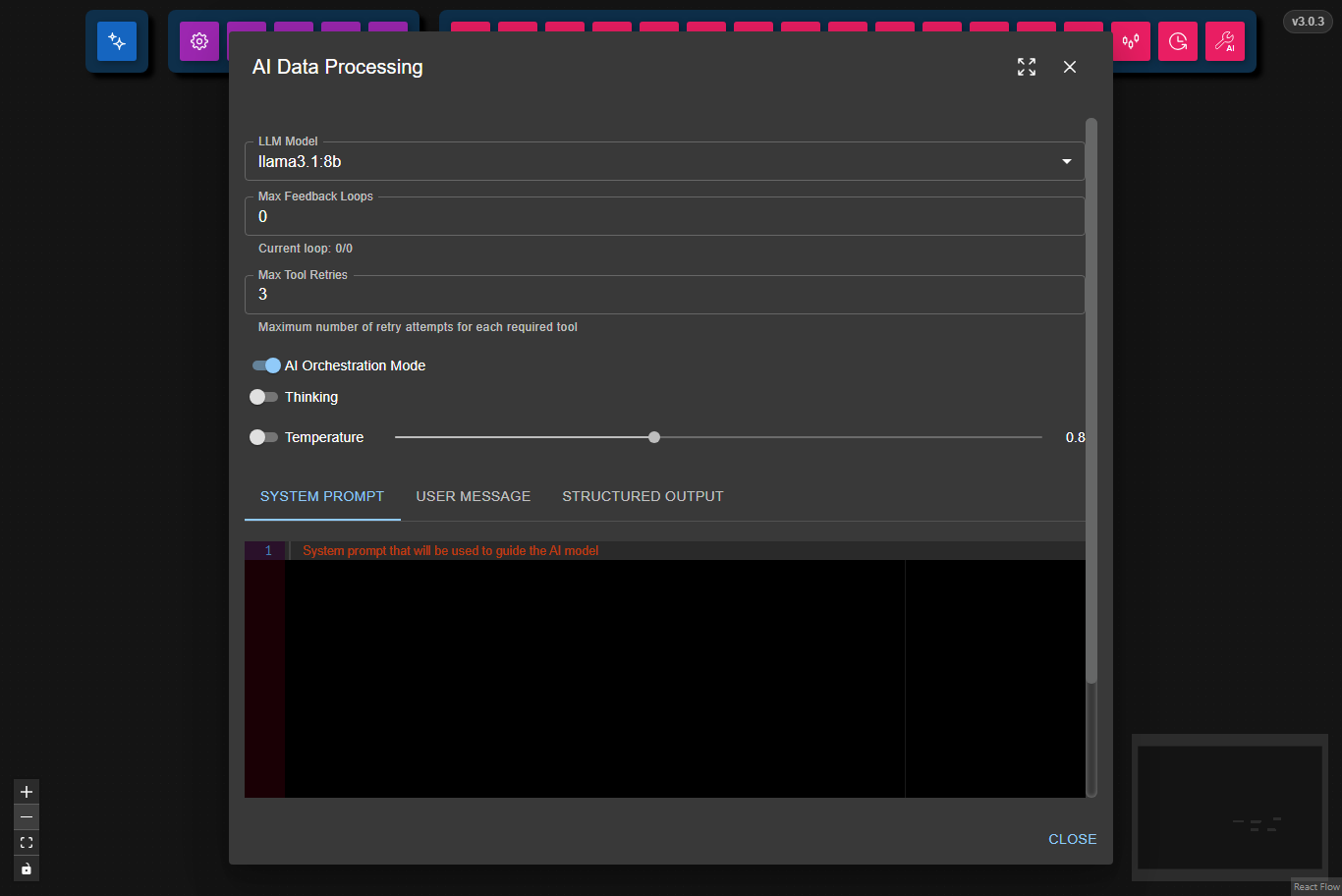
Set how many times the node should retry if it receives an error from the next node in the chain.
Set the maximum number of retry attempts for each required tool call.
If a tool call fails (for example, due to invalid parameters or an external API error), the node will retry up to this number of times before failing.
When enabled, the node first asks the model to decompose the input into a structured plan of sequential tasks using a JSON-constrained planner response. Each task is then executed as a separate agent call, and the results are aggregated into the final response.
This is useful for complex, multi-step inputs, but it depends on the model being able to produce valid structured JSON for the orchestrator plan.
Enable Thinking to let the node use the model's internal reasoning mode during response generation. This can help the model produce more structured, step-by-step responses for difficult tasks.
Use Temperature to control response randomness:
- Lower values make output more deterministic.
- Higher values make output more creative and varied.
- Toggle temperature on to use the slider; when off, the node uses the model default.
Provide instructions that guide the AI's behavior and responses.
The input the node receives can be customized before processing by adding text before or after it:
- Message Prefix: Text added before the input.
- Message Suffix: Text added after the input.
If the node receives an input array or object, it is serialized as pretty-printed JSON before being sent to the model. In orchestration mode, this applies to any input the node receives (array, object, string, or any other value) — it is embedded into the orchestrator planning prompt as pretty-printed JSON, except a string input, which is embedded as-is rather than re-quoted.
Define JSON schemas for structured responses:
- On Success: The expected format for successful responses. If not set, the output will be plain text.
- On Error: The format for error responses. This only works if On Success is also set.
Note: If you want to chain multiple AI Data Processing Nodes (for example, one node processes data and another oversees its output), set up both On Success and On Error schemas in the overseer node. If the overseer detects an error, it will trigger a feedback loop, prompting the previous node to correct its output.
See the AI Data Processing Overseer workflow for a complete example.
This is the full JSON Schema for the node's data configuration object, generated from the Zod schema used to validate the node at runtime.
{
  "type": "object",
  "properties": {
    "model": {
      "type": "string",
      "description": "Ollama model name to use for LLM processing"
    },
    "prompt": {
      "type": "string",
      "description": "System prompt to guide the LLM behaviour"
    },
    "format": {
      "type": "object",
      "properties": {
        "onSuccess": {
          "type": "string",
          "description": "JSON Schema string for Ollama structured output on success — constrains the LLM reply shape for successful responses"
        },
        "onError": {
          "type": "string",
          "description": "JSON Schema string for Ollama structured output on error — constrains the LLM reply shape when the node is handling an error"
        }
      },
      "additionalProperties": false,
      "description": "Structured output schemas passed to Ollama to constrain LLM response format"
    },
    "message": {
      "type": "object",
      "properties": {
        "prefix": {
          "type": "string",
          "description": "Text prepended to the user message before sending to the LLM"
        },
        "suffix": {
          "type": "string",
          "description": "Text appended to the user message before sending to the LLM"
        }
      },
      "additionalProperties": false,
      "description": "Message wrapper applied around the incoming data"
    },
    "maxFeedbackLoops": {
      "type": "integer",
      "minimum": 0,
      "description": "Maximum number of feedback iterations before stopping"
    },
    "maxToolRetries": {
      "type": "integer",
      "minimum": 0,
      "description": "Maximum number of retries when a tool call fails"
    },
    "conversationHistory": {
      "type": "array",
      "items": {
        "type": "object",
        "properties": {
          "role": {
            "type": "string",
            "enum": [
              "system",
              "user",
              "assistant"
            ]
          },
          "content": {
            "type": "string"
          }
        },
        "required": [
          "role",
          "content"
        ],
        "additionalProperties": false
      },
      "description": "Retained conversation history for multi-turn interactions"
    },
    "think": {
      "type": "boolean",
      "description": "Enable thinking mode for supported models (e.g. deepseek-r1)"
    },
    "temperatureEnabled": {
      "type": "boolean",
      "description": "Whether to override the default model temperature"
    },
    "temperature": {
      "type": "number",
      "minimum": 0,
      "maximum": 2,
      "default": 0.8,
      "description": "Sampling temperature (0 = deterministic, 2 = very random)"
    },
    "orchestrationMode": {
      "type": "boolean",
      "description": "When enabled, an AI orchestrator decomposes the input into individual agent tasks, runs them sequentially, then synthesizes a final aggregated response"
    }
  },
  "required": [
    "model",
    "maxFeedbackLoops",
    "maxToolRetries"
  ],
  "additionalProperties": false
}
Example Usage
For an example usage, see the Weather Dashboard workflow and AI Data Processing Overseer workflow.
Common Use Cases
- Text Summarization: Condense long documents or articles.
- Data Analysis: Extract insights from structured data.
- Content Generation: Create articles, reports, or responses.
- Question Answering: Process queries and provide answers.
- Language Translation: Convert text between languages.
Best Practices
- Use clear, specific prompts for better results.
- Experiment with different models to find the best fit for your task.
- Use structured output schemas for reliable downstream processing.
- Set feedback loops to improve output quality.
Troubleshooting
Common Issues
- Model not found: Make sure the model is installed in Ollama.
- Slow responses: Try a smaller model or check your system resources.
- Inconsistent output: Use structured output schemas for consistency.
- AI Orchestration Mode errors: This mode internally uses structured output for the orchestrator's planning step. If the selected model can't reliably produce that, you'll see an error such as
Failed to parse orchestrator plan: Unexpected token ... is not valid JSON. Try a different/larger model, or disable AI Orchestration Mode. - Date/time understanding issues: Some LLMs, especially smaller models, may have difficulty interpreting or reasoning about dates and times provided in the input. If you notice problems with date handling, try rephrasing your prompt, providing more context, or using a larger/more capable model.
Performance Tips
- Use smaller models for simple tasks.
- Write concise, focused prompts.
- Batch similar requests when possible.
- For workflows that require tool calls (such as using the Max Tool or CSV parsing), use larger LLMs (at least 8B or bigger) for lower error rates and more reliable tool execution. Smaller models may fail or produce inconsistent results when handling tool-based tasks.