This feature is available in the PRO subscription tier. Learn more about PRO
Slack Input Node
The Slack Input Node listens for incoming Slack slash commands and uses them to trigger your workflow. It connects to your Slack workspace using Socket Mode, enabling real-time message handling without exposing a public HTTP endpoint.

Prerequisites
Before using this node, you need to create and configure a Slack app. See the Slack Bot Setup guide for step-by-step instructions.
Configuration
- Bot Token
- App Token (Socket Mode)
- Command Filter
- Routing ID
- Configuration Schema
The Bot User OAuth Token for your Slack app (starts with xoxb-).
Obtain this from your Slack app's OAuth & Permissions page after installing the app to your workspace.
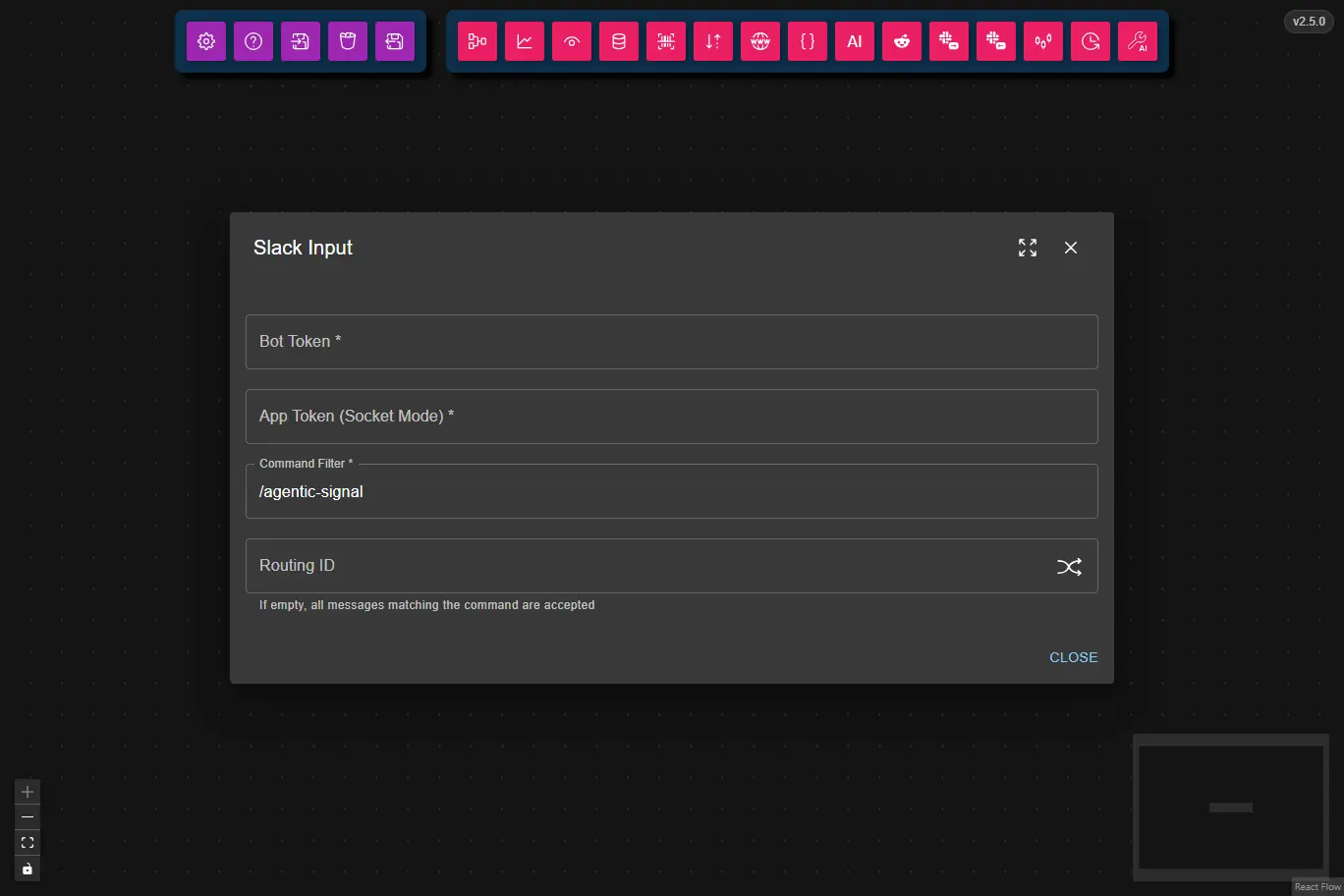
The App-Level Token used to establish a Socket Mode connection (starts with xapp-).
Generate this from your Slack app's Basic Information page under App-Level Tokens. The token requires the connections:write scope.
The slash command to listen for (e.g., /agentic-signal).
Only messages sent with this command will be processed by the node. This must match the command registered in your Slack app manifest.
An optional identifier to distinguish this node from other Slack Input nodes sharing the same bot.
When set, only slash commands that include the matching routing ID will trigger this node. Users must type:
/agentic-signal [routing-id] your message
If left empty, all messages matching the Command Filter are accepted regardless of routing ID. Use the shuffle button to auto-generate a random ID.
This is the full JSON Schema for the node's data configuration object, generated from the Zod schema used to validate the node at runtime.
{
  "type": "object",
  "properties": {
    "nodeId": {
      "type": "string"
    },
    "source": {
      "type": "string"
    },
    "teamId": {
      "type": "string"
    },
    "channelId": {
      "type": "string"
    },
    "userId": {
      "type": "string"
    },
    "message": {
      "type": "string"
    },
    "responseUrl": {
      "type": "string"
    },
    "triggerId": {
      "type": "string"
    },
    "timestamp": {
      "type": "string"
    }
  },
  "required": [
    "nodeId",
    "source",
    "teamId",
    "channelId",
    "userId",
    "message",
    "responseUrl",
    "triggerId",
    "timestamp"
  ],
  "additionalProperties": false
}
Output
When a matching slash command is received, the node passes the following data to connected downstream nodes:
| Field | Type | Description |
|---|---|---|
channelId | string | The Slack channel ID where the command was sent |
responseUrl | string | URL to send a delayed response to the slash command |
userId | string | The Slack user ID who sent the command |
message | string | The text following the command (and routing ID) |
Example Usage
For example usage, see the Slack AI Web Search Bot Workflow, which listens for Slack slash commands, queries the web with DuckDuckGo, and returns the AI-generated response directly in Slack.
Common Use Cases
- AI-Powered Commands: Trigger AI workflows directly from Slack.
- Team Automation: Allow team members to run workflows without leaving Slack.
- Data Retrieval: Fetch and return data in response to Slack commands.
- Multi-Workflow Routing: Use different Routing IDs to run multiple independent workflows from the same bot.
Best Practices
- Always set a Routing ID when running multiple Slack Input nodes to prevent accidental cross-triggering.
- Keep tokens secure: Store Bot and App tokens privately; never share them publicly.
- Use Command Filter correctly: Ensure it matches exactly the command registered in your Slack app manifest.
- Combine with Slack Output Node: Pair this node with the Slack Output Node to send responses back to users using the
responseUrloutput.
Troubleshooting
Common Issues
- Node not receiving commands: Verify the Bot Token, App Token, and Command Filter are all correctly configured. Ensure the Slack app is installed to your workspace and Socket Mode is enabled.
- Routing ID mismatch: Double-check that users include the correct routing ID in their command.
- Token errors: Confirm the Bot Token starts with
xoxb-and the App Token starts withxapp-. - App disconnects: Socket Mode connections may drop; stop and restart the node to reconnect.
Performance Tips
- Use the Routing ID to isolate workflows and avoid processing unrelated commands.
- Pair with the Slack Output Node to provide immediate feedback to users.